Student Instructions
This course is part of our course material delivery program, Panther Ready. The bookstore will provide each student with a convenient package containing all required physical materials and all digitally delivered materials for this course will be integrated into Canvas.
You should have received an email from the bookstore confirming materials provided for each of your courses and asking you to select how you would like to receive any printed components (in-store pick up or home delivery). If you have not done so already, please confirm your fulfillment preference so the bookstore can prepare your materials.
For more information about Panther Ready, please go to the Panther Ready Website.
Setup for Course Materials Link
Watch the Tutorial Video
Canvas External Tool Configuration
Any courses that are using digital courseware materials will need to include a Course Materials link in Canvas so that students can access their digital materials. If the Course Materials link has not already been added by you (or Canvas Admin), please follow the following instructions below for setup. Note: Canvas may have slight variations in these steps or naming.
- Log into Canvas with your instructor username and password and navigate to the course that requires the Course Materials link.
- Click Settings from the left-hand navigation.
- If Settings is not available, make sure that you are in the course as a teacher. Once you are, Settings will appear.
- Click the Navigation tab, and scroll down to the hidden items, at the bottom of the list.
- Look for Course Materials on the list.
- Click and hold Course Materials and drag it up to the list of active navigation links.
- If the Purchase Course Materials link is an active navigation link, select it and drag it down to the hidden items, to prevent student confusion for this course only.
- Click Save.
- The Course Materials link will now be available in the left-hand navigation for your course. You may have to refresh your window to see it.
- Repeat these steps any additional sections that require the Course Materials link.
Student Experience for Digitally Delivered Publisher Courseware and eBook
- Student signs into their Canvas Portal to access their course(s).
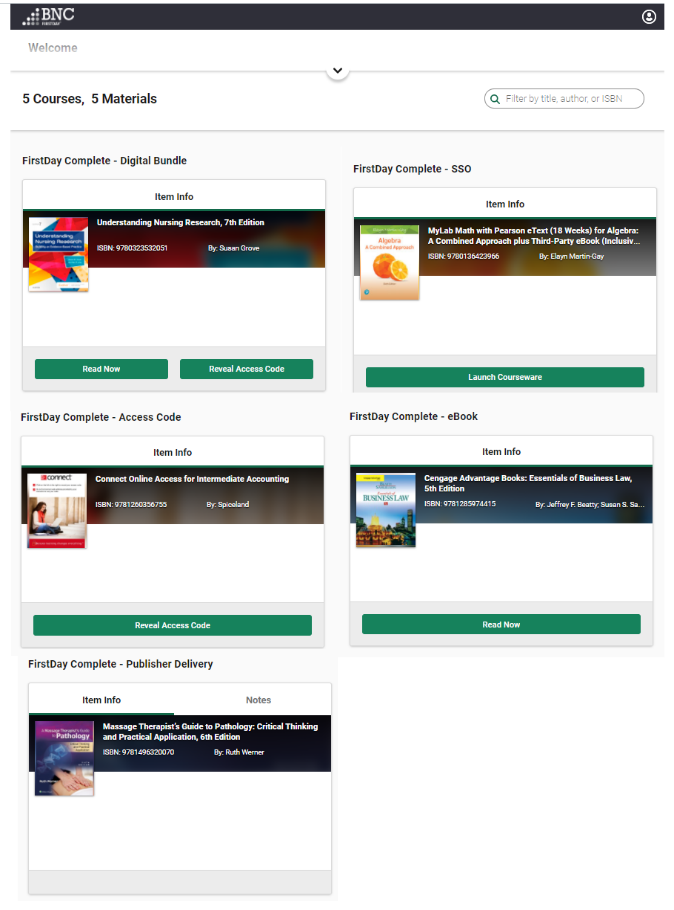
- Student clicks the Course Materials link in the Canvas course. All digitally delivered materials for a student's enrolled courses will be shown in this link.
- Students would simply click the green actionable button to navigate their material.
- Depending on content type, some additional steps may be required by the student.
- Please note with Publisher Delivery, the student will see no actionable buttons, students will need to navigate to the Publisher's link to access their materials.
Below are screenshot examples of what your student should see in the Course Material link based on content type and delivery method for digitally delivered materials.
Student Experience for Printed Materials
- Students will receive a Selection email 30 days prior to semester start with a link to make their Student Selection and confirm how they would like to receive any printed material (in-store pick up or home delivery).
- If students cannot find the email, they can visit the bookstore's home page (click Reserve Now) or the Panther Ready Campus Landing Page for the link to make their selection.
Student Support for Course Materials
We suggest that students provide their name, school email address, school, course information and screenshots of the issue if applicable for any ticket submitted.
Digitally Delivered Materials
Customer Care is available to help students with questions about accessing their course material or using their eBook. Be sure to shre the information below with your students.
Customer Care is available 24 hours a day, seven days a week - 24/7.
Printed Materials
Students experiencing issues with accessing their print materials via the Panther Ready Student Portal, should be directed to the BNC FDC Support Team.
Questions? Contact Your Bookstore
Florida Tech Bookstore
FLTech@bncollege.com / Bookstore@fit.edu
(321) 674-8042