

Florida Tech is moving to a new course material delivery program, Panther Ready, that provides access to your required course materials before the first day of class. With this program, the bookstore will provide you with a convenient package for physical course materials and your digital course materials will be delivered directly in your Canvas. This guide will assist you with accessing your digital course in your Canvas.
How to Access Your Course Materials
- To access your course materials, log into your LMS using your school credentials.
- Once you are in the LMS, select your course, then look for the "Course Materials" link.
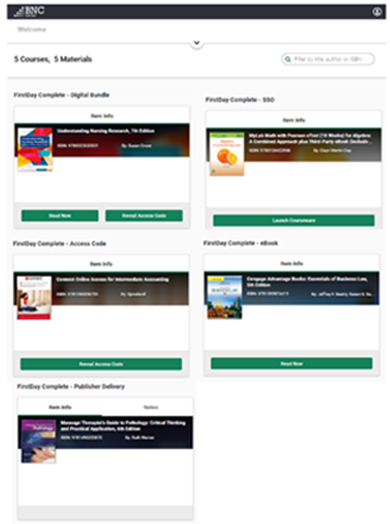
There are several different types of materials you might see within your courses such as an eBook, publisher courseware, or a bundle of both an eBook and courseware. No matter which type of course material your instructor has chosen for your course, you can access the material by clicking on the green button.
eBook
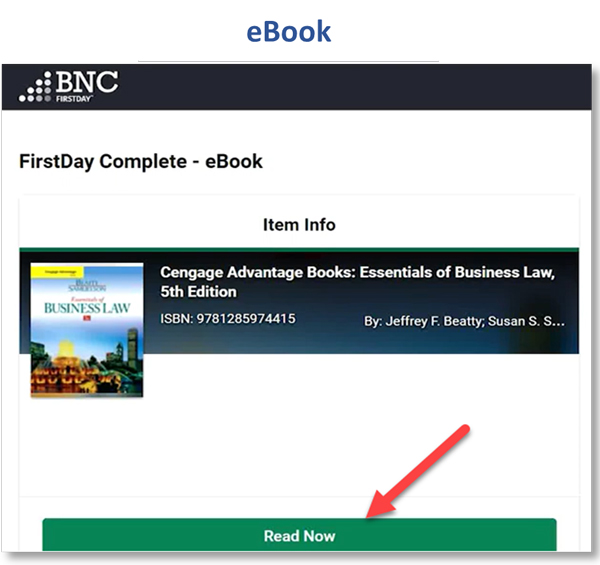
- If your instructor has chosen an eBook, you will see the "Read Now" button.
- Click on the "Read Now" button.
-
- Clicking on this button will launch the BNC eBook reader and take your directly to your eBook. There are several tools and features you can use with your eBook such as highlighting and adding notes.
Publisher Courseware
Publisher courseware may be delivered in one of three different methods:
- Publisher Delivery
- SSO
- Access Code Reveal
- If your course includes publisher courseware, and the material is embedded directly into your course through deep-linking or learning modules, you will only see the cover image of the materials for this course. The notes section of this type of course will inform you where to go to locate your publisher courseware.
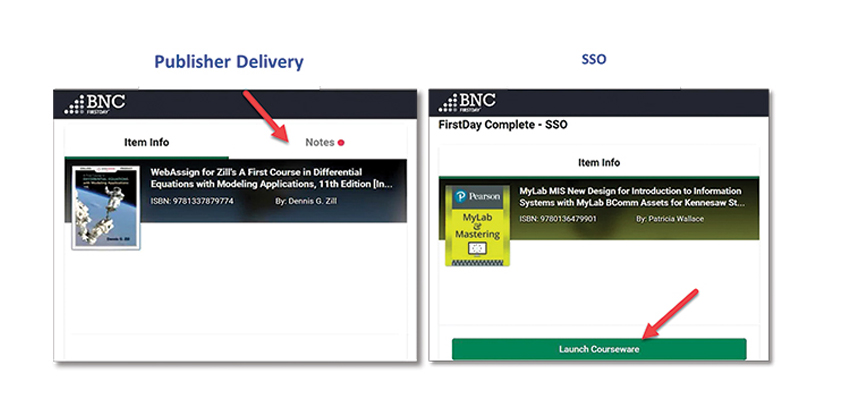
- If your course includes publisher courseware, you will see the "Launch Courseware" button.
- Click on "Launch Courseware" button.
- Clicking on this button will take you directly to your courseware on the publisher's website where you will be automatically logged into the courseware and can begin using your material immediately.
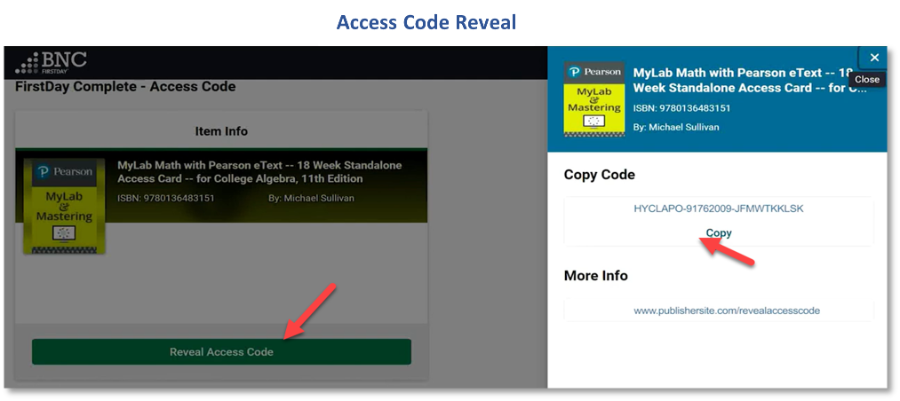
- For certain publishers, you will access your publisher courseware by clicking on the "Reveal Access Code" button.
- Click on the "Reveal Access Code" button.
- To access this material, copy the access code and click the link to the publisher's website. Once on the publisher's site, input the code to access your course material. You may need to create an account or sign in (if you already have an account) before gaining access to your material.
Student Experience Videos by LMS Type
Canvas Student Experience Video
Support
If you have any questions about the program or platform, you can find the Support link in the menu on the top right
- Click "Support" link from Profile drop-down.
- On this page, you can find FAQs about the program and platform.
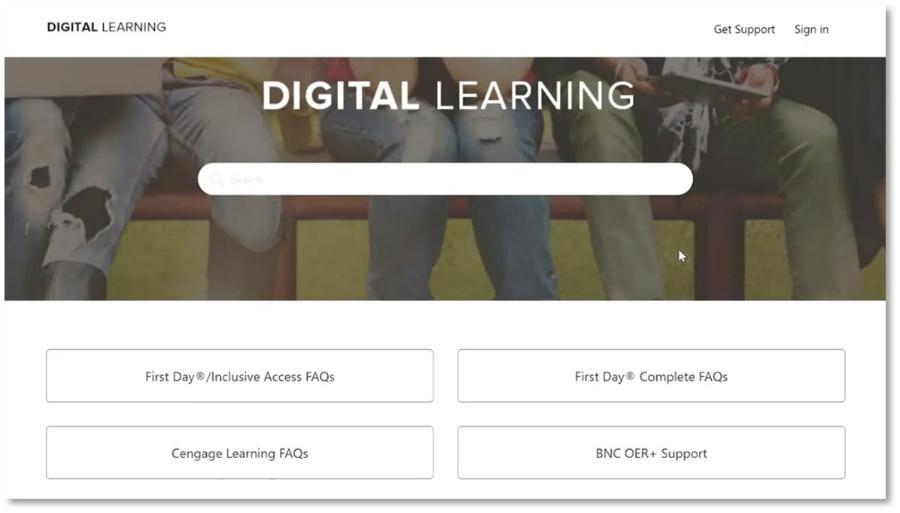
For additional help, click "Get Support" in the upper right corner to open a ticket with Customer Care. There is also phone and email support available 24/7 to answer your questions or help with any troubleshooting. As always, you may also contact your Bookstore Manager with any questions.
Customer Care is available 24 hours a day, seven days a week - 24/7.
- Open a ticket online for the Customer Care team
- Email the Customer Care team: bookstorecustomercare@bncollege.com
- Call the Customer Care team: 1-844-9-EBOOKS (1-844-932-6657)
We suggest that students provide Customer Care with their name, school email address, school, course information and screenshots of issue if applicable.